6 MIN READ
NOTE
EPIC ANNOTATOR
WHY I BUILT IT · 2026
FREE
I draw on my screen constantly. Circling a bug in a demo, marking up a design while I talk. Every tool I tried got one thing wrong: it was paid, or fiddly, or only drew on one monitor, or made me stop annotating just to scroll. So I built Epic Annotator and made it the one I actually wanted. This note covers the decisions I made, and the one that kept it off the App Store.
There are plenty of screen-annotation tools. I tried them. Presenting and recording demos is half my week. I kept reaching for the same thing: let me draw on the screen for a second. And I kept hitting the same walls. The good ones were paid subscriptions for what is, honestly, a pen on glass. The free ones were clunky, or only drew on my main monitor, or kicked me out of annotate mode every time I wanted to scroll.
None of those are hard problems. They’re just nobody’s priority, because annotation is usually a checkbox feature bolted onto something bigger. I wanted it to be the whole point. So I built the version I’d reach for. When I showed it around, the things that annoyed me annoyed a lot of other people too.
Every one of these is a choice about what to value. Each is also something another tool gets wrong, which is why I made the opposite call.

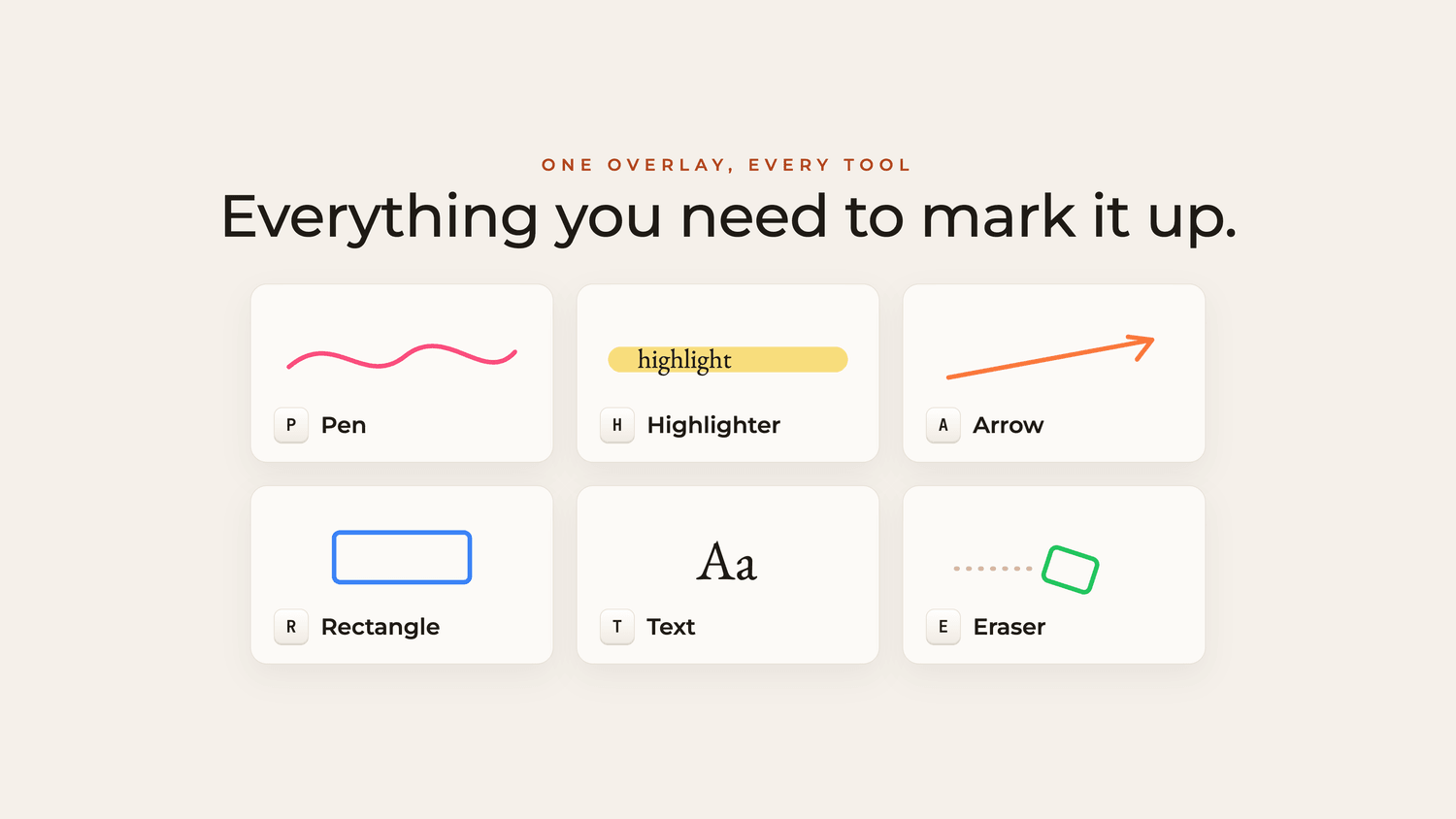
One hotkey summons it. Pick a tool and go. No modes to learn, no manual. The bar was simple. I had to use it in a live demo without thinking about it. Most tools fail that on setup alone.
The polished options charge a monthly fee to draw on your own screen. I didn’t want a tool that nags me to upgrade mid-presentation, so it’s free. You shouldn’t have to rent a highlighter.
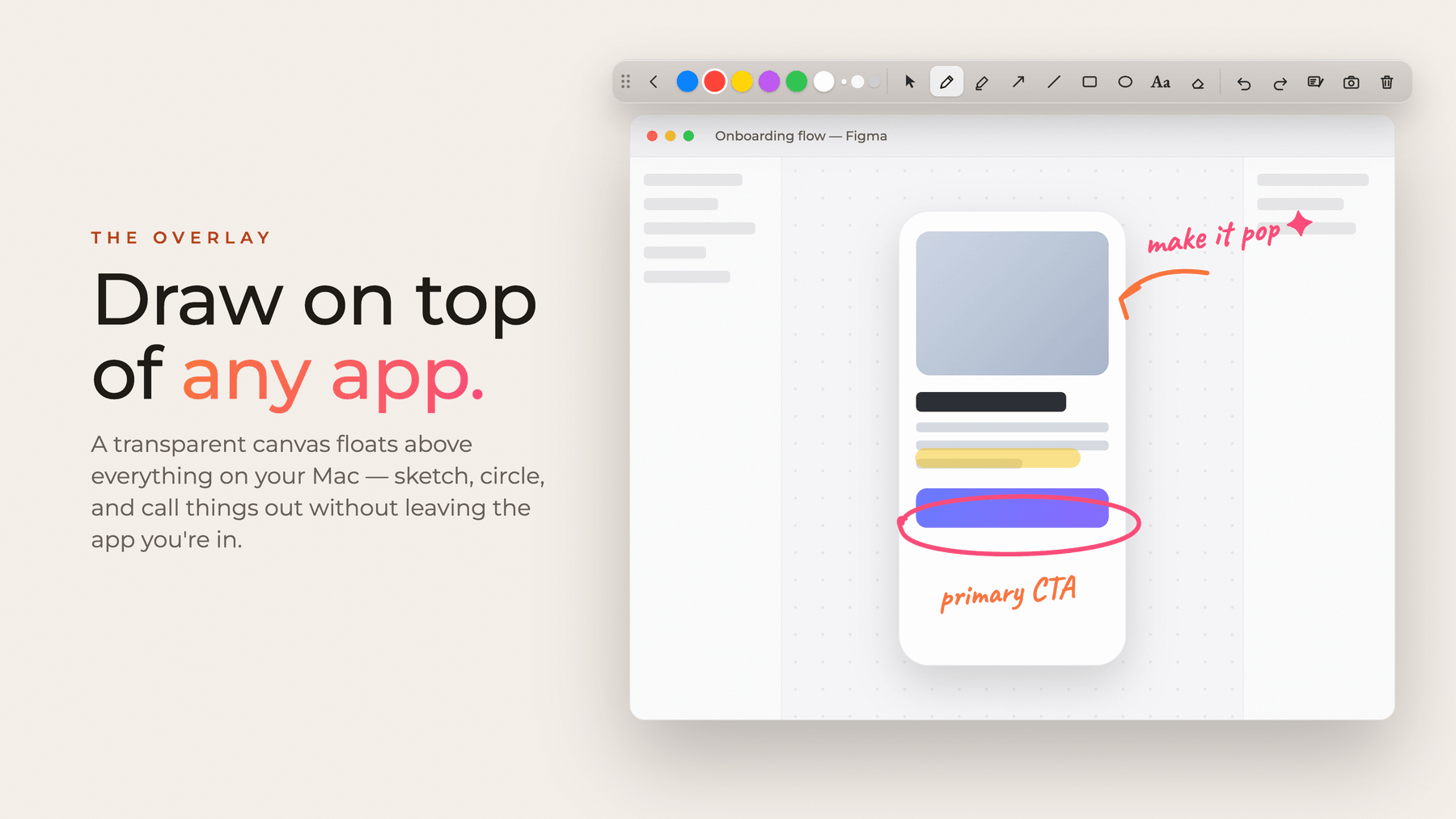
It draws across every display and Space, even over full-screen apps. Most annotators only cover the main monitor, which is useless the moment you present on an external screen. Which is most of the time.
Hold Space and you can scroll or drag the app underneath the markup, without leaving annotate mode. Pan a design, scroll a long page. No other tool I tried does this. It also cost the most to build, which is the next section.
Three of those four decisions were free. The fourth, scrolling the app underneath without stopping, was not. To do that, the app has to reach into the app you’re drawing on. macOS doesn’t let an app touch other apps unless you explicitly trust it in System Settings, which is the right default. It’s the same permission that powers screen readers and automation tools.
Asking for that trust has a knock-on cost. An app that wants it can’t live in the Mac App Store, where that access isn’t allowed. So the real price of “annotate without stopping” was two things: a permission prompt the user has to approve, and the easiest distribution channel, gone.
I decided the feature was worth it. It’s what makes the tool feel different in the hand. But I refused to make everyone pay for it. So it’s off until you turn it on, with a plain-language explanation of what it does. Every other part of the app works with zero permissions: all the drawing, every tool, every screen. You grant the extra trust only if you want the one feature that needs it. You opt in, or you never touch it.
The price of “annotate without stopping” was a permission prompt and a spot on the App Store. I paid it, because that one feature is the reason the tool exists. The trade, in one sentence
I build and present on a Mac, so that’s what I built for. The signature feature leans on a Mac-specific trick anyway. Cross-platform would have meant building for whatever both platforms share, and shipping something worse on each. I’d rather it be excellent on one.
No account. No cloud. No sign-up. No analytics watching how you use it. A screen annotator should open the instant you need it and disappear when you’re done. Anything that phones home or asks you to log in works against that. I’m also holding back a roadmap of features on purpose: spotlight, zoom, cursor effects. The simple version has to be right first.
Building for yourself is about as honest as user research gets. You’re user zero. You feel every rough edge daily, and you can’t talk yourself into believing it’s good when it isn’t. I built the tool I wanted, and enough other people wanted the same one.


